Looking for a safe way to download an auto clicker on Windows 11 or Windows 10? You’re in the right place. This guide walks you through the entire process—from finding a clean download to running your first automated clicks—in under five minutes.
Before You Download: One Golden Rule
The biggest risk with auto clickers isn’t the software—it’s fake download sites that bundle adware into the installer. Only download from the official website, and never accept a “download manager” that installs something else first.
For a full safety checklist, read Is an Auto Clicker Safe? Viruses, Malware & How to Download Safely.
Step 1: Download AT Auto Clicker
- Visit the official AT Auto Clicker website
- Click Download for Windows
- Save the file to your Downloads folder
AT Auto Clicker is a single lightweight executable—no bloated installer, no bundled extras, and it’s completely free.
Step 2: Run the File
Double-click the downloaded .exe to launch it. AT Auto Clicker is portable-friendly and doesn’t require a complicated installation wizard.
What If Windows SmartScreen Appears?
You may see a blue “Windows protected your PC” popup. This appears for many small indie tools that don’t have an expensive code-signing certificate—it does not mean the file is a virus.
To proceed:
- Click More info
- Click Run anyway
If you’re unsure, scan the file with your antivirus or VirusTotal first. A clean tool will show zero or near-zero detections.
Step 3: Configure Your First Automation
Once the app opens, set up a basic clicking task:
- Set a click point — choose where on the screen clicks should land
- Choose the mouse button — left click is the most common
- Set the interval — start with 100–300 ms if you’re new
- Pick a repeat mode — a fixed count (e.g., 100 clicks) is safest for your first test
Not sure what numbers to use? Check Best Settings for Auto Clicker Beginners for a safe starting configuration.
Step 4: Set Up Hotkeys
Hotkeys let you start and stop automation without switching windows—essential for games and full-screen apps:
- Assign a Start/Stop hotkey (e.g., F6)
- Optionally assign a hotkey for recording mouse and keyboard actions
Step 5: Test Before Long Runs
Always do a short supervised test first:
- Run 20–50 clicks and watch them land in the right place
- Confirm the stop hotkey works instantly
- Only then scale up to longer sessions or infinite loops
Skipping this step is one of the most common auto clicker mistakes—and the easiest to avoid.
Windows 11 vs Windows 10: Any Differences?
The experience is essentially identical on both systems. A few small notes:
- Windows 11 may show SmartScreen more aggressively; the “More info → Run anyway” flow is the same
- Both systems may ask for permission the first time you use global hotkeys while another app is focused
- If you run a game as administrator, run the auto clicker as administrator too—Windows blocks input from lower-privilege apps to elevated windows
What Can You Do After Installing?
AT Auto Clicker goes far beyond basic clicking:
- Multi-point clicking — automate sequences across multiple screen positions
- Macro recording — record mouse and keyboard actions, then replay them
- Playback speed control — replay recordings from 0.25x to 8x speed
- Saved configurations — store setups for different games and workflows
- Delayed start & auto-minimize — perfect for timed tasks
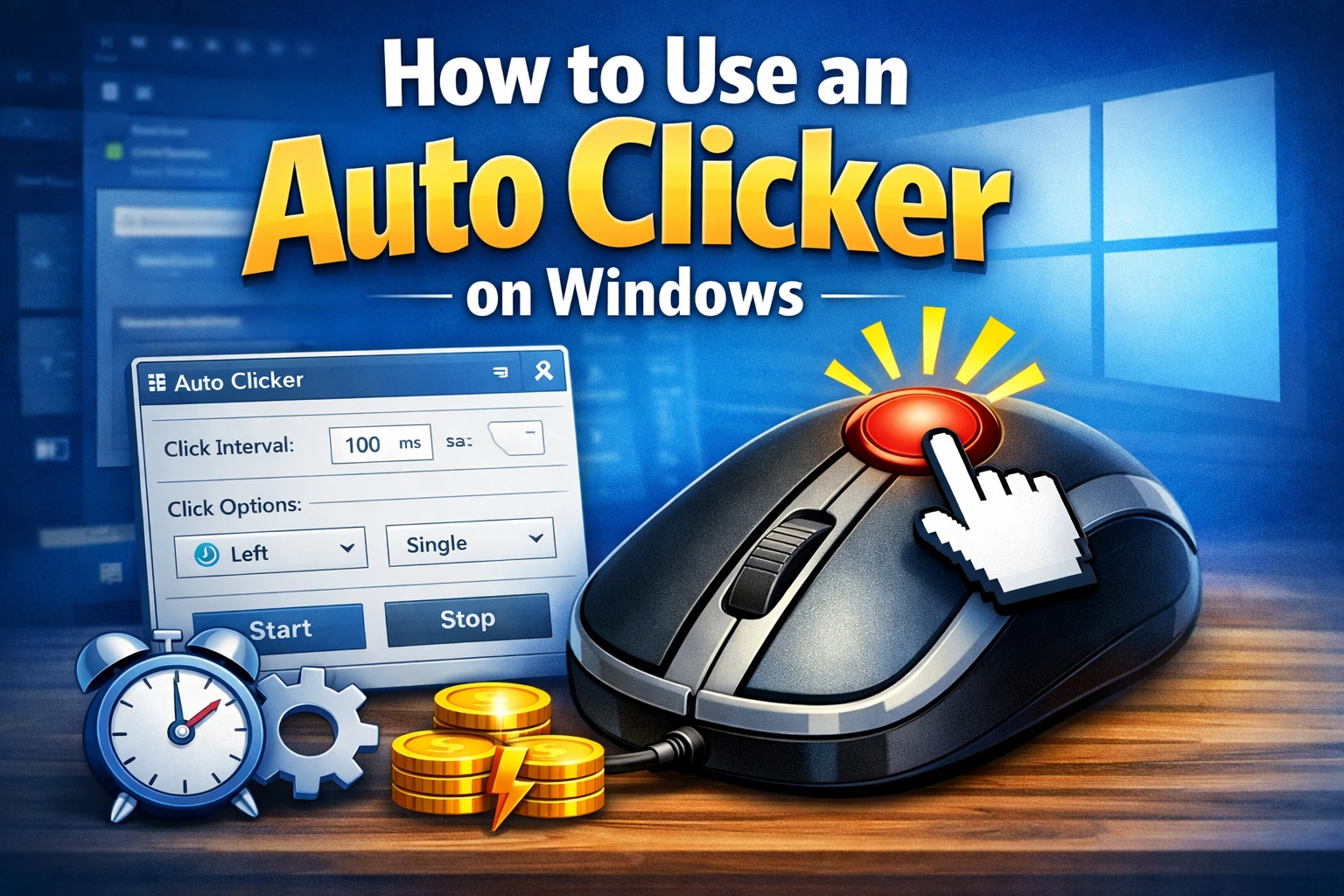
For the full walkthrough of every feature, see How to Use an Auto Clicker on Windows (Step-by-Step Guide).
FAQ
Does AT Auto Clicker work on Windows 11? Yes, it runs natively on both Windows 11 and Windows 10.
Is the download really free? Yes—100% free, with no ads, no trials, and no locked features.
Do I need to install anything else? No. It’s a single executable with no dependencies, download managers, or bundled software.
Will it work in games? Yes. Just remember that some multiplayer games restrict automation—check Are Auto Clickers Allowed in Games? first.
Get Started Now
Download AT Auto Clicker, run through the five steps above, and you’ll have your first automation running in minutes. When you’re ready to push further, our Ultimate AutoClicker Guide covers everything from CPS tuning to advanced macro workflows.