A smart auto clicker is not simply a clicker with a higher speed setting. A useful workflow chooses the correct automation method, preserves enough time for the interface to react, stops predictably, and remains understandable when you return to it later.
AutoClicker Pro combines four layers—Timer, Macro, Tasks, and Tools—so a workflow can grow without hiding its controls.
Choose the smallest tool that fits
Start by classifying the task:
| Task pattern | Best tool |
|---|---|
| One button repeats at a known rate | Timer |
| Several stable controls repeat in order | Multiple click points |
| Mouse, keyboard, wheel, or natural delays interact | Macro recorder |
| A tested saved macro must begin later | Scheduled task |
| You need to show the pointer clearly | Cursor highlight tool |
Using a macro for one repeated click creates unnecessary complexity. Using a fast coordinate loop for a changing interface creates unnecessary risk.
Smarter timing is measured timing
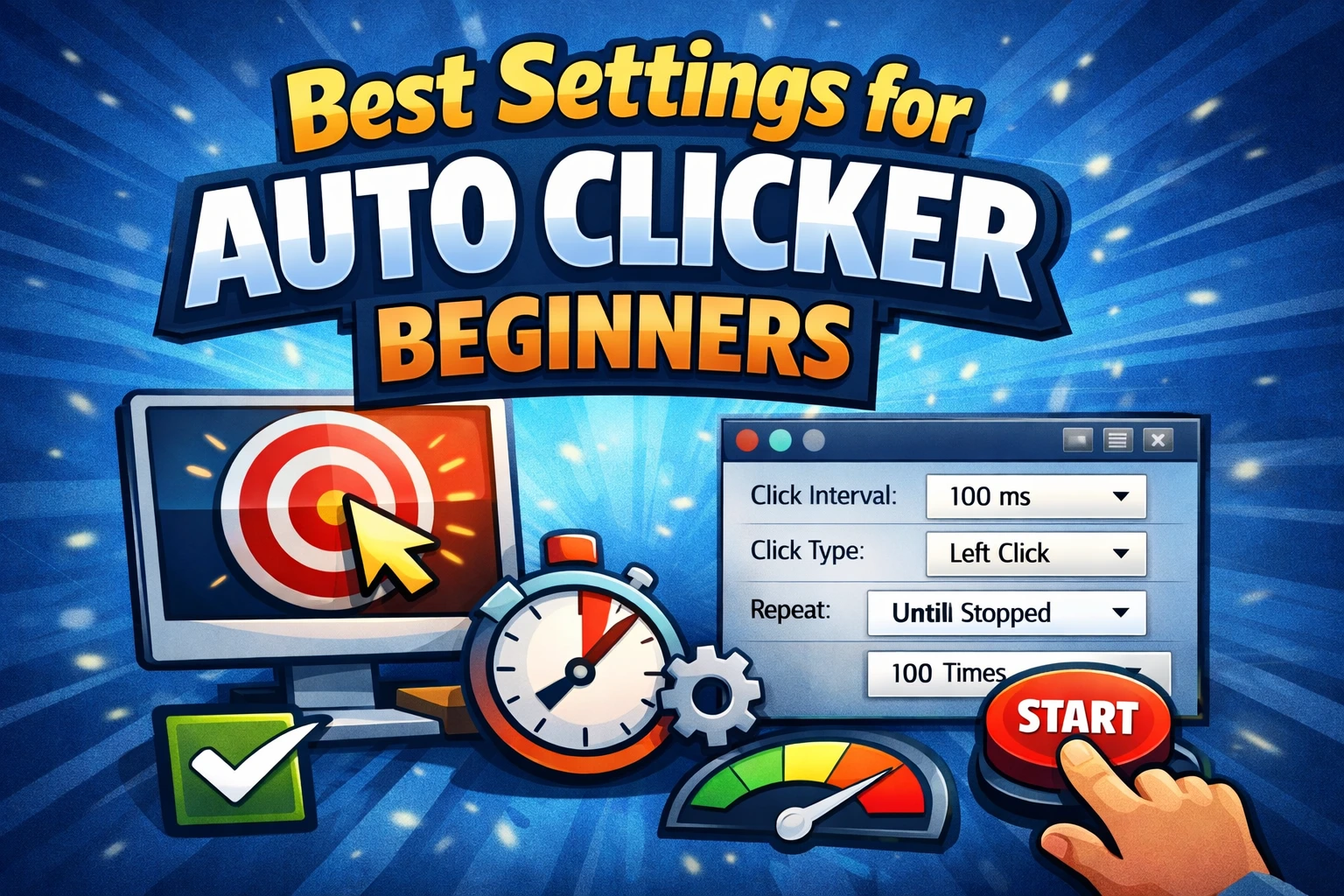
Begin with a visible, conservative interval and a fixed count. Watch the target rather than the CPS label. If every action registers, reduce the interval gradually until the target begins missing or lagging; then return to the last stable value.
For multi-step automation, each transition can need a different delay. Opening a local menu may take milliseconds, while loading a page or report may take seconds. AutoClicker Pro’s macro editor lets you review and adjust individual actions and delays instead of forcing one universal click rate on the whole workflow.
Use randomness for resilience testing, not rule evasion
Small timing or position variation can reveal whether a workflow is too dependent on one exact delay or pixel. Pro supports random interval additions and a random position radius for legitimate desktop testing.
Randomness does not make prohibited automation permitted, invisible, or human. Never use variation to evade anti-cheat, rate limits, abuse controls, or workplace policy.
Turn a recording into a reliable macro
- Put the target app into a known starting state.
- Record one clean successful cycle at a normal pace.
- Stop before any unrelated movement or key press.
- Review the event list.
- Remove accidental actions and insert only necessary delays.
- Replay once with safe test data.
- Save the known-good version before experimenting.
- Add a repeat count only after one cycle succeeds.
The free AutoClicker can record and replay local mouse-and-keyboard workflows. Pro adds a broader action editor with insert, delete, edit, and reorder controls plus playback speeds from 0.5x to 10x.
Schedule only a proven saved macro
AutoClicker Pro’s Tasks module can run a saved macro at a specified date and time, with playback speed and repeat options. Scheduling increases the importance of preparation because you may not be watching the first action.
Before creating a task:
- confirm the computer will be awake and signed in;
- put the target app in the expected starting state;
- test the exact saved macro manually;
- keep destructive and irreversible steps out of the script;
- use a finite repeat count;
- verify the date, time, and local time zone;
- leave a recovery path if the target is not ready.
The Tasks feature is visible in Pro so you can understand the workflow. Membership is checked when paid execution is requested, not while you browse the module.
Add Tools when the workflow needs observation
The Pro Tools module contains cursor-highlighting styles and a CPS tester. Cursor highlight can make demonstrations, training, or recorded walkthroughs easier to follow. The CPS tool measures manual click speed over a selected test duration; it does not validate whether an automated target registered every click.
Use the auto clicker test workflow for automated-output verification and the online CPS test for quick manual measurement.
Know what a coordinate workflow cannot see
AutoClicker follows timing, recorded events, and screen points. It does not claim to understand the meaning of every button or recover automatically from every unexpected dialog. If the target layout is highly variable, use a state-aware supported API or dedicated test framework instead.
That honesty is part of smart automation: choose a tool whose model matches the task.
Frequently asked questions
Does “smart auto clicker” mean image recognition?
Not necessarily. In this guide, smart means selecting and testing the right timer, point, macro, task, and stop rule. AutoClicker does not advertise general visual AI control.
Can AutoClicker Pro schedule a macro?
Yes. The Tasks module uses a saved macro, start date and time, playback speed, and repeat choice.
When is the free edition enough?
Use AutoClicker Free for compact timed clicks, multiple points, and local mouse-and-keyboard recording. Choose Pro for the broader editor, scheduler, and tools workspace.