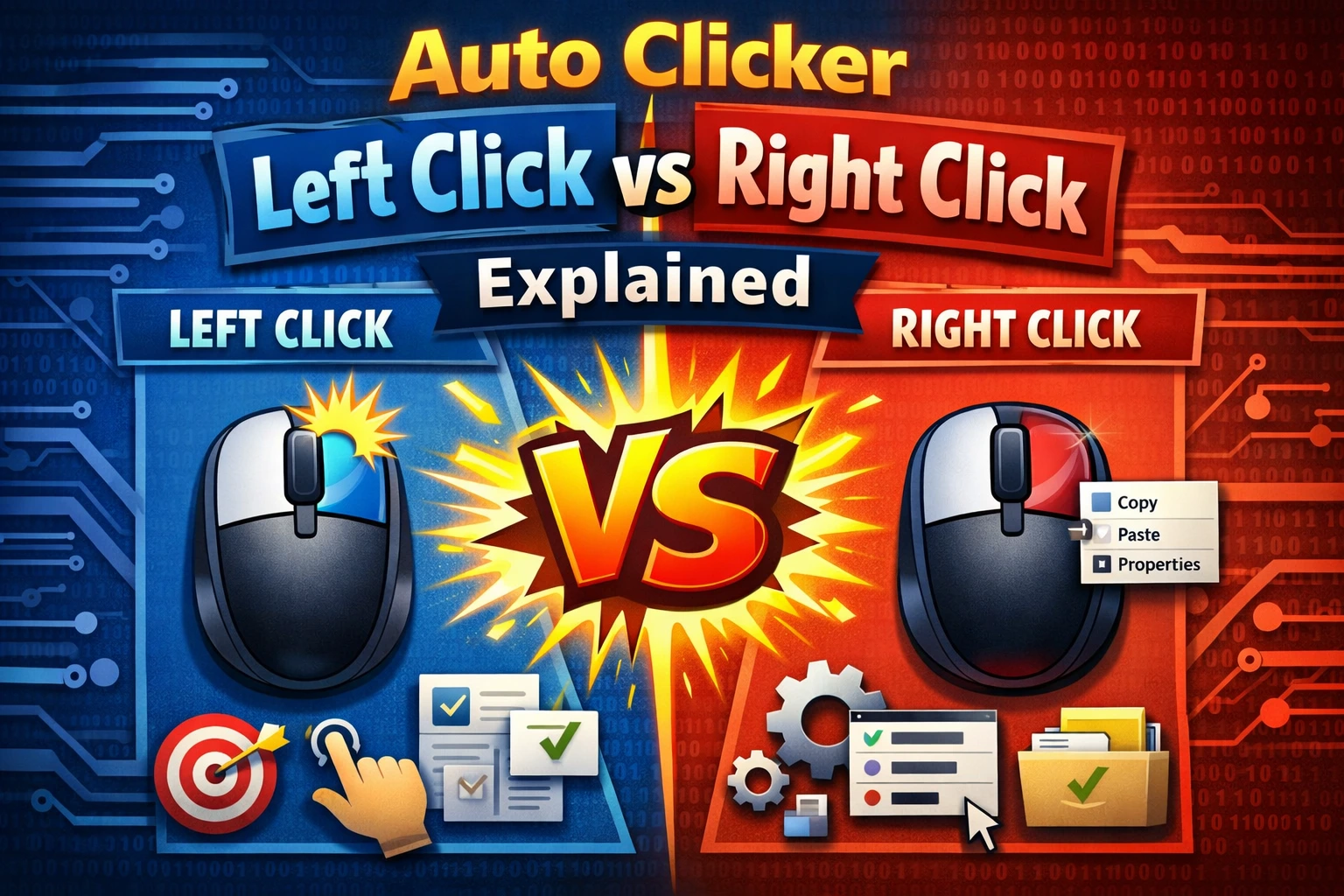
A mouse auto clicker repeats a mouse-button action at the current pointer location or at one or more saved screen points. The basic idea is simple, but button, event type, timing, location, and stop rule all affect the result.
This guide maps those choices to practical Windows tasks without assuming that maximum speed is the goal.
Choose the mouse button
Left click
Use left click for ordinary buttons, links, selections, and primary actions. It is the safest default for a harmless first test.
Right click
Use right click only when you intend to open a context menu or trigger the target app’s secondary action. A repeated right click can leave menus covering the next target.
Middle click
Middle click uses the mouse wheel button. Browsers often assign it special behavior, and other apps may ignore it. Test one event before repeating.
Side buttons
AutoClicker Pro also supports forward and back mouse buttons for targets that recognize them. These buttons can navigate browser history, so use a disposable test state.
Read the detailed left-, right-, and middle-click comparison before changing away from left click.
Choose single, double, or hold
Single click activates most buttons and links. Double click is a distinct paired event used for actions such as opening a desktop file. Hold keeps the button pressed for a controlled period and needs extra care because an interrupted run must release the button correctly.
Do not simulate double click merely by setting a very fast single-click interval. Select the event the target expects.
Choose where the automatic mouse click lands
Current cursor
The click occurs wherever you place the pointer before the run. Use this when the target moves or you want to aim manually each time.
Fixed position
Capture one screen coordinate when the target always appears in the same place. Fix the window position, resolution, scaling, and browser zoom before saving it.
Multiple points
Create an ordered sequence when several stable controls must be clicked in turn. Verify each point at slow speed and include enough wait time for the interface to react.
AutoClicker Free supports current-cursor and multiple fixed targets in its compact Timer page. Pro adds a broader workspace and position-radius variation for appropriate testing workflows.
Set timing and a stop rule
For the first run, use a 500 ms interval and 10 repetitions. This equals two requested clicks per second and gives you time to observe the pointer and target.
After the result is correct:
- reduce the interval one step;
- repeat the same fixed count;
- compare requested and registered actions;
- stop reducing when the target misses or lags;
- return to the last reliable value.
Use repeat count for a known quantity, duration for a proven time-based task, and continuous mode only after testing the stop shortcut.
When to use a macro instead
Switch from the timer to a mouse-and-keyboard macro when the task includes typing, wheel scrolling, a natural pause, a shortcut, or several different event types. A recording preserves the order and timing of one successful manual cycle.
The free app can record and replay locally. AutoClicker Pro adds action-level editing, inserted delays and events, reordering, expanded speed controls, and scheduled playback through Tasks.
Fix common mouse auto clicker problems
| Problem | First check |
|---|---|
| Clicks wrong spot | Window position, display scale, browser zoom |
| Hotkey does nothing | Shortcut conflict, Fn key, app permissions |
| Some clicks missing | Increase the interval |
| Context menu keeps opening | Switch from right to left click |
| Target moves during run | Use current cursor or redesign the workflow |
| Works in one app only | Compare permission levels and target rules |
Use the auto clicker test checklist to verify each setting independently.
Frequently asked questions
Is a mouse auto clicker free?
AutoClicker Free includes timed clicks, multiple points, repeat rules, global hotkeys, and local macro recording without an account.
Can it click more than one position?
Yes. Add several fixed points and test the order slowly before repeating the sequence.
Can it follow a moving button automatically?
AutoClicker uses the current pointer, recorded events, or saved coordinates; it does not claim general visual recognition of moving controls.