Click the way you need
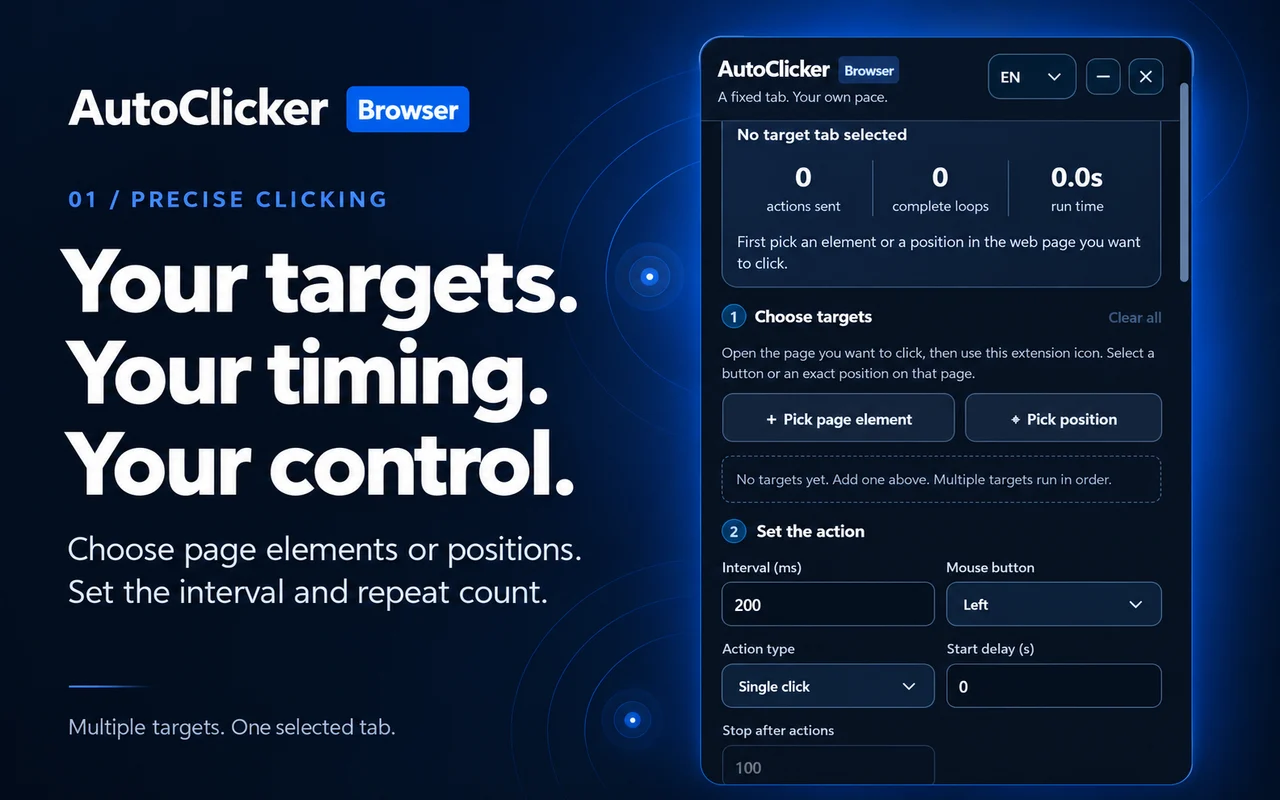
Basic includes up to 3 positions and 1 page element. Choose your interval, mouse button, and click action. Pro adds more targets.
 AutoClicker Browser
Basic clicks free. More with Pro.
Start free with up to 3 positions and 1 page element. Sign in to Pro for more targets, recorded routines, scheduled runs, and cloud sync.
Opens the Chrome Web Store. Confirm installation there.
Install directly from the Chrome Web Store
Prefer no installation? Try the online toolBuilt for everyday browser tasks
Set up a short click sequence, test your own web interface, or replay a routine. AutoClicker Browser gives you control over the target and the pace.
Basic includes up to 3 positions and 1 page element. Choose your interval, mouse button, and click action. Pro adds more targets.
Your task stays attached to the selected browser tab while you switch tabs. Move or minimize the floating panel to keep your workspace clear.
Keep local click presets as JSON. With Pro, sync private presets and recordings through your account library and load them on another device.
01 / Browser macro recorder
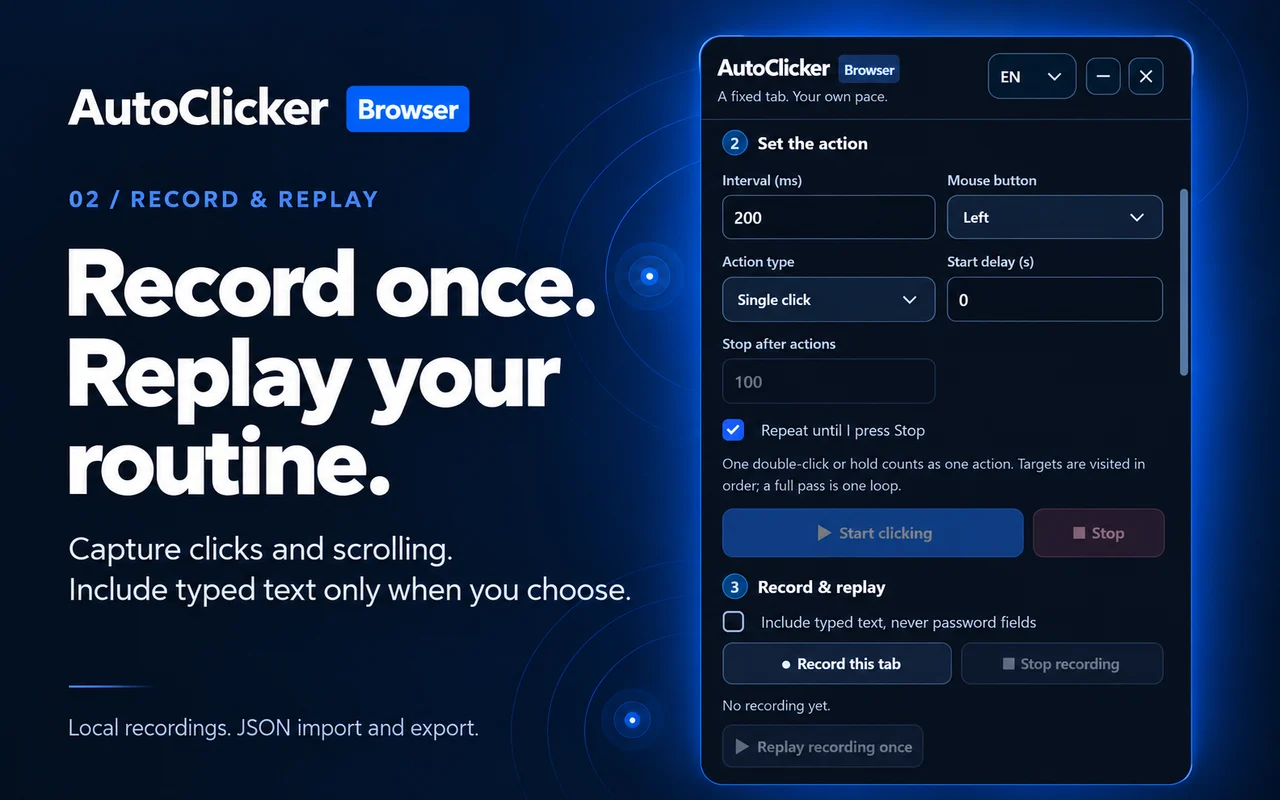
Capture clicks and scrolling on the selected page, then replay the sequence. Include typed text only when you choose. Keep a local JSON copy or save it to your private account library.
Restore the page to its starting state before replaying. Password fields and fields identified as sensitive are excluded from text recording.
02 / Scheduled browser tasks
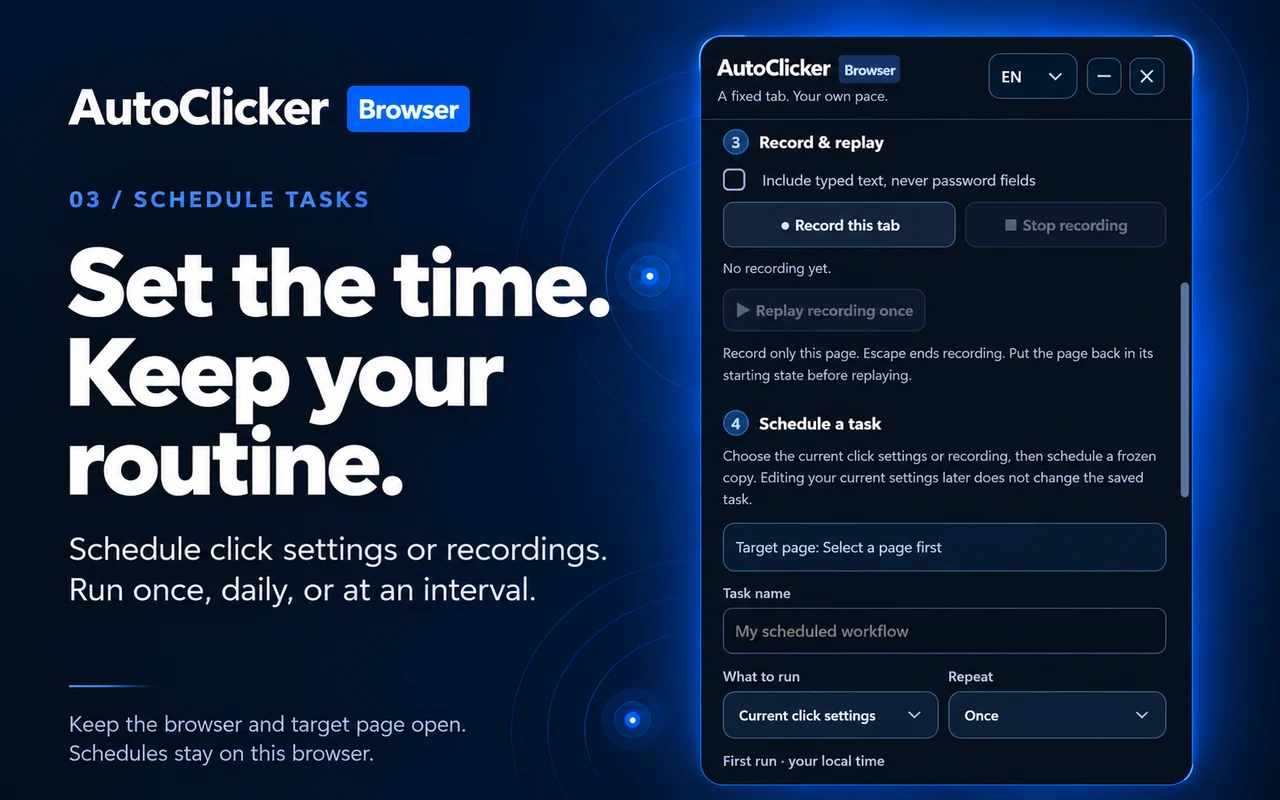
Turn your current click settings or recording into a scheduled task. Run it once, daily, or at an interval, with a maximum run time for each run.
Keep Chrome and the exact target page open. Alarms are approximate; schedules stay on this browser. Reloading, navigation, or a browser restart may require rebinding the target.
Get started in Chrome
Open the Chrome Web Store listing, select “Add to Chrome”, and confirm the permissions in Chrome.
Pin AutoClicker Browser in Chrome’s Extensions menu. Open a regular web page and click the extension icon to bring up its floating panel.
Choose “Pick page element” or “Pick position”, click your target, and set the interval. Press “Start clicking” when the panel returns.
Chrome shows a debugging notice while enhanced input is attached. The panel hides during picking, recording, and execution so it does not cover your targets. Use Stop or the stop shortcut to end a task.
Your browser. Your choice.
Click presets and recordings stay in browser storage by default. The optional account cloud library lets you save a private copy and load it after signing in on another device.
Nothing is uploaded automatically. Review recorded text before saving or sharing it. Loading a cloud item does not start it, and scheduled tasks remain local to the browser where you created them.
Before your first run
Installation, recording, scheduling, and what to expect when a task is running.
Click Add to Chrome on this page to open the AutoClicker Browser listing in the Chrome Web Store. Select Add to Chrome there and confirm the installation in Chrome. Pin the extension, open the page you want to automate, and use the extension icon to select your click targets.
Basic clicking is free without an account, with up to 3 coordinate positions and 1 page element. In extension 1.4 and later, additional targets, recording, replay, scheduling, and extension cloud sync require an active Pro subscription or lifetime entitlement. Use the same account as Windows Pro.
Yes. The extension keeps input directed at your selected target tab while you switch tabs or close its control panel. Keep Chrome and the original target page open. Closing or navigating the target, opening DevTools, computer sleep, or browser shutdown can interrupt a task. Use Stop or Alt+Shift+X to stop clicking or recording.
Yes, with Pro. Sign in from the extension account card, select Record this tab, and perform your clicks and scrolling. Press Escape or Stop recording to finish. Typed text is optional; password and sensitive fields are excluded. Restore the page to its starting state before replaying.
Yes, with an active Pro plan. Prepare a click preset or recording, then use Schedule a task. Choose a first run at least 30 seconds ahead and a repetition mode. Keep Chrome and the exact target page open. Browser alarms are approximate; overlapping runs and runs over 60 seconds late are skipped. Navigation or restart may require rebinding. Pro access is checked again at run time.
AutoClicker Browser uses Chrome's debugger permission to send mouse and keyboard input to the target tab for your click task or recording replay. Chrome displays its own notice while input is attached. Use the extension's Stop control or Alt+Shift+X when you want to end the task.
Yes. The separate no-download online workspace includes a demonstration clicker, bookmarklet, and recorder for compatible pages. Ordinary webpages have more restrictions than the extension: some sites block bookmarklets or simulated clicks, and background timers may slow down. Fixed-tab input and scheduled tasks are features of the extension.
The extension operates on the browser page you select and does not control desktop apps or system dialogs. Settings and recordings are stored locally by default. Nothing is uploaded automatically. Only a preset or recording you explicitly save through the account library is stored in your private cloud library; review recorded text before saving or sharing.
Prefer an online auto clicker?
The no-download workspace is still here: a demo clicker, a bookmarklet for compatible pages, and an online recorder. It is a simple way to try the controls before installing.
Open the free online toolAutoClicker Browser
Basic clicking is free. Unlock more with your Pro account.
Use automation on pages where you have permission and follow the website’s rules. Browser automation works inside your selected tab; for desktop apps, use a desktop edition.